
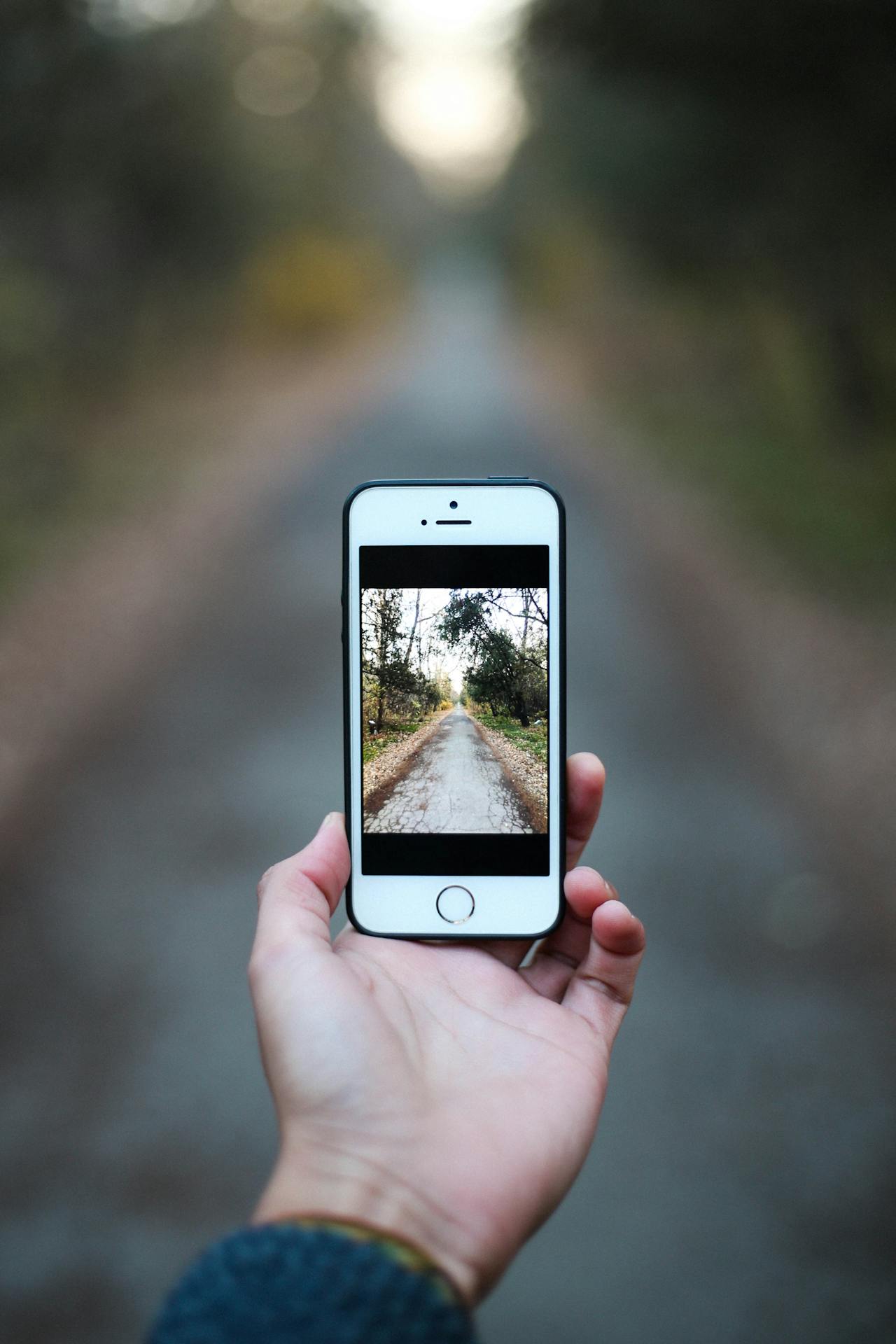
Spring cleaning isn’t just a great excuse to refresh your wardrobe – it’s also the perfect excuse to clean up your iPhone. No matter how much storage your device comes with, it’s easy to run out of space. As a UGC creator, I run into this problem all the time. I shoot thousands of photos for Instagram and tons of videos for TikTok, plus I use many editing apps. Lately, I noticed my iPhone getting sluggish (freezing up here and there), and I knew it was time for a cleanup. Given that spring is in full bloom, I needed a super-fast iPhone to capture content while everything around remains vibrant and picturesque. I suspect many of you encounter similar issues, so I will share how I cleaned my iPhone in just a few minutes without significant interruptions to my daily routine.
Quick Ways to Clean Your iPhone
Let’s be real – there are a bunch of ways to clean up an iPhone, but I stuck with the ones that actually worked for me: fast, effective, and zero time wasted scrolling and deleting files one by one. And now I’m gonna share those same tricks with you.
1. Declutter Your Photo Library
Since I shoot visual content daily, my photo gallery often fills up with numerous photos, many of which look very similar (achieving the perfect shot usually requires several attempts). Therefore, I decided it would be great to delete these excess images. After researching the topic, I discovered that iOS offers a utility for this purpose, but it only identifies exact duplicates, which I found a bit inconvenient. There are definitely other ways to get rid of duplicate and similar photos, but I went with a dedicated app because, honestly, it’s just the easiest option. Out of all the choices in the App Store, I picked Clever Cleaner: AI CleanUp App.

Clever Cleaner is an application that can identify all similar photos (including exact duplicates), group them, and determine the best image in each group. You then have the option to delete all the extras at once by pressing only one button, or you can choose to delete more selectively. Isn’t that convenient? Another aspect I appreciated about Clever Cleaner is that the application is completely free, which was a major advantage for me.
- Download the free Clever Cleaner app from the App Store on your iPhone.
- Once it’s installed, open the app and give it full access to your Photos. It’ll scan your photo and video library and automatically open the “Similars” feature.
- You’ll see groups of photos, both exact duplicates and ones that look similar.
- Tap on any group to see more details. If the app’s choice for the best photo looks good to you, go back and hit “Smart Cleanup” to delete the rest.
- If you want to keep some that the app marked for deletion, that is no problem. Just uncheck the ones you want to save and check the ones you’re okay deleting. Then tap “Move to Trash.”

- The selected photos will go into the app’s trash first. You can review everything there before the final deletion. When you’re ready, slide the “Slide to Delete” bar, and the photos will move to your iPhone’s “Recently Deleted” album.
- The app will walk you through how to clear that album if you want to free up space right away. If storage isn’t a big issue for you, you can skip that (just know the album will automatically clear after 30 days).

Clever Cleaner also comes with other handy features that can help you clean up your gallery even more, like deleting screenshots, large videos and photos, and compressing Live Photos. You can check out all the details on the app’s App Store page or official website. Personally, clearing out duplicates and similar shots gave me enough of a storage boost, so I haven’t tried the other tools yet, but you might find them super helpful.
2. Refresh Your App Data
Next, I cleared the cache and app data. These are basically the files your apps collect over time to help them run faster, like not having to reload everything from scratch. But if that data piles up or gets outdated, it can actually slow things down, both for the app and your iPhone overall. Browsers and social networking apps usually collect the most cache and data, so I’ll show you how to clear the cache using those as examples:
Let’s start with Safari, the default browser on Apple devices:
- Open the Settings app on your iPhone and open a list of all apps.
- Scroll down and tap on Safari.
- Scroll down and tap on Clear History and Website Data.
- Confirm by tapping Clear History again.

For other apps, you’ll need to check if they have a built-in option to clear cache – some do, some don’t. One that does is TikTok, which I use a lot to post content and scroll through everyone else’s. Here’s how to clear the cache in TikTok:
- Open TikTok on your iPhone.
- Go to your profile by tapping on the Me icon.
- Tap the three lines in the top right to access Settings and Privacy.
- Scroll down and tap on Free up space.
- A new screen will pop up showing how much TikTok data you’ve got. Tap “Clear” next to the cache section to clear just the cache. You can also choose to clear your downloads and drafts if you want, but that’s totally up to you.

For apps that don’t offer a built-in option to clear cache and data, like Instagram, the only real way to do it is by reinstalling the app.
3. Organize Your Apps
It is also a good idea to delete applications that you do not use. This frees up storage and helps declutter your home screen.
- Just press and hold the app icon until a quick menu pops up.
- Tap “Remove App,” then confirm by selecting “Delete App” to erase it and all its data.
- If you’re deleting the app to clear its cache, head to the App Store, search for the app again, and tap the cloud icon to reinstall it.

If you like keeping your home screen neat, try organizing your apps into folders. For example, you can put all your default apps in one folder, social media in another, and photo/video editing tools in a separate one or group them however works best for you.
- Press and hold an app icon until it starts jiggling.
- Drag the app icon over another app that you want to group together with. This action creates a new folder.
- Release the app icon to drop it into the new folder.
- You can name the folder by tapping the folder name area and entering your preferred name.
- Press the “Home” button or swipe up (on models without a Home button) to save your changes.

4. Confirm Your iPhone is Up-to-Date
Lastly, from personal experience, always keep your iPhone updated. This practice may not directly clean your device but will improve its stability, as each update aims only at improvement.
- Open Settings on your iPhone, then tap General.
- Choose Software Update.
- Your iPhone will check for new updates and show the details if one’s available.
- To install it, tap Install Now, but make sure you’re on Wi‑Fi and your phone is charged (or plugged in).

I used these tips to clean up my iPhone in just a few minutes, and it’s running smoother than ever. Now, I can create content for all my socials without any annoying freezes. I recommend you try these methods as well, you will definitely notice the changes. If you have any questions or encounter any problems, please write to me, and we will try to resolve them together!